Classification and Auto-tagging
Create a regular expression
Menu: Library/Classification
Let’s first create a regular expression for the ‘Postal code’.

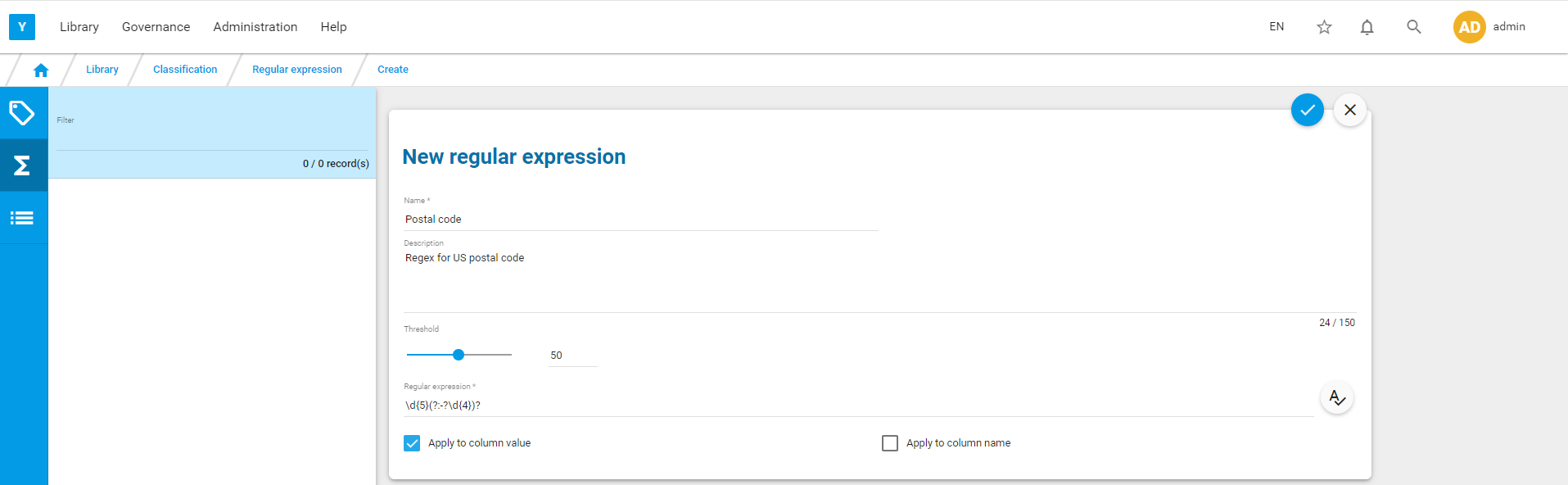
Click on  to save.
We can now create the corresponding Tag.
Create the corresponding tag

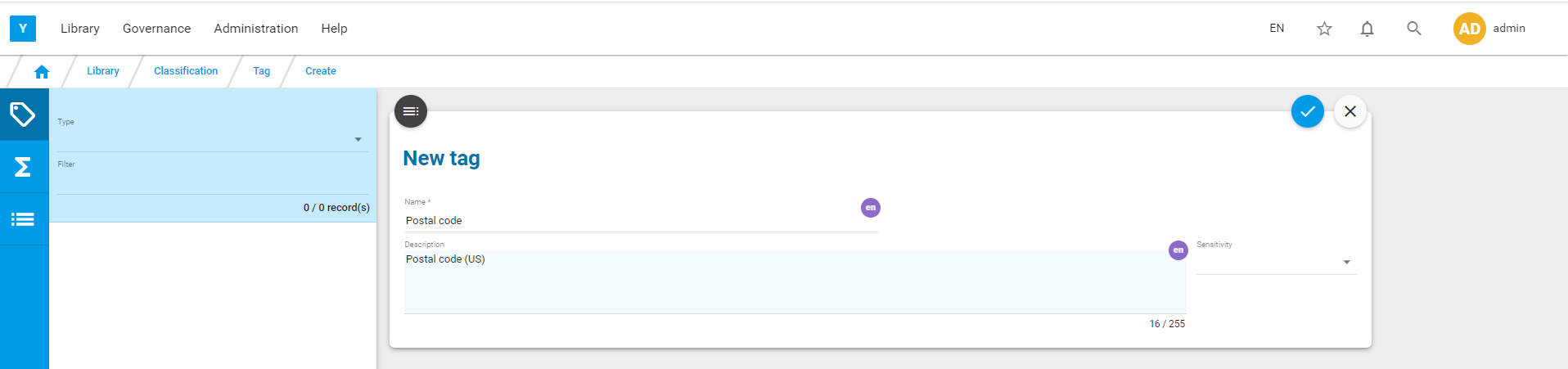
Click on to save.
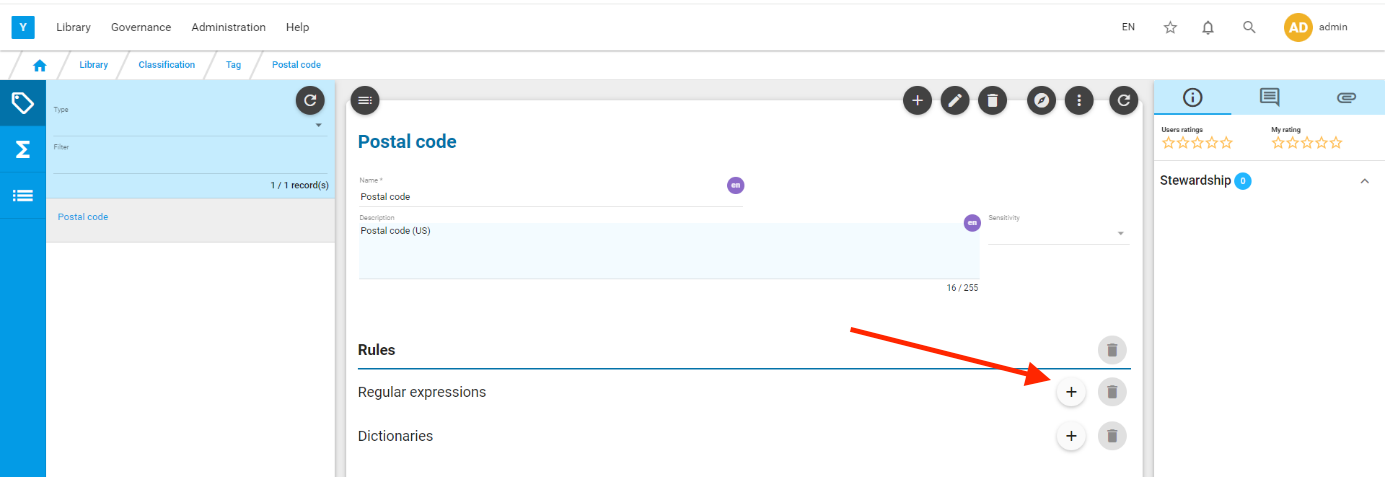
We’ll now attach to this tag to the regular expression. Click on the  icon.
icon.
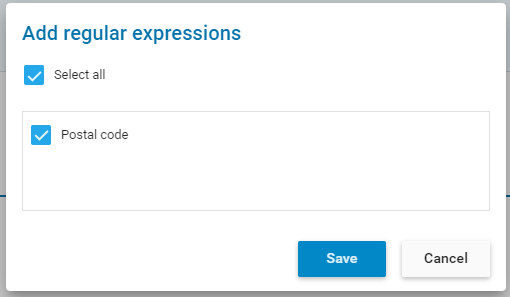
Select the ‘Postal code’ regex and Save.
We can now go back to the Connection page : Menu : Administration/Connection
Click on the  icon to push the newly created tag to the crawler.
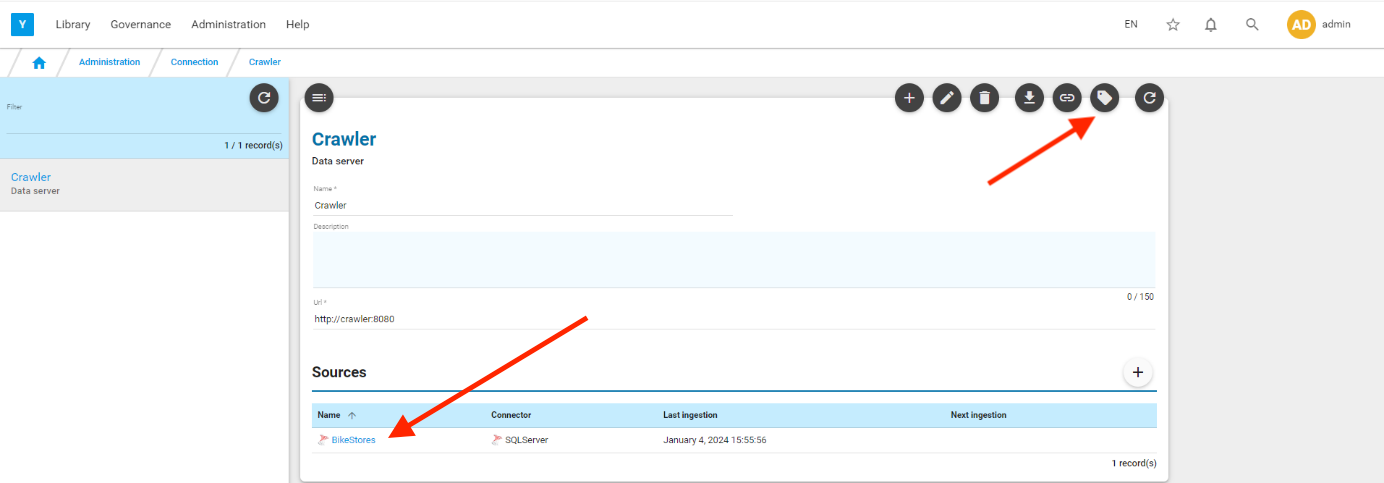
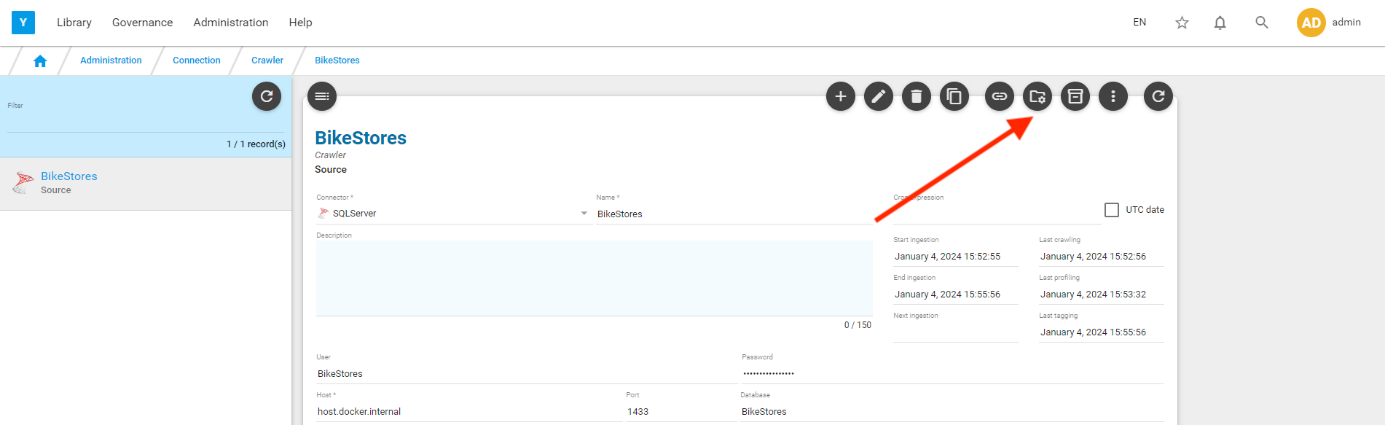
Go the BikeStores source page and ingest again the source by clicking on  .
.
After a few minutes (time for the profiling/auto-tagging to complete in a simple laptop environment), if you go to the BikeStores.sales.customers.zip_code column page in the catalog, you’ll notice that a suggestion is present (  in the right panel). You will see similar suggestion if you go to BikeStores.sales.stores.zip_code column page.
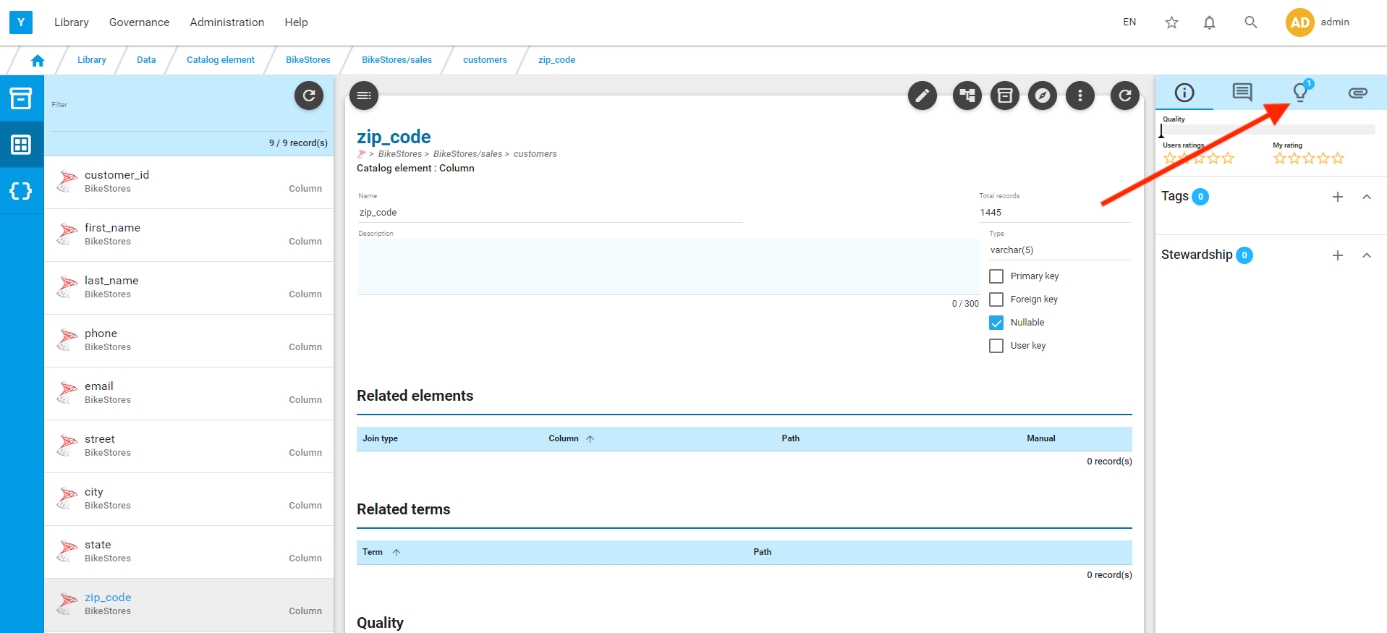
Click on .
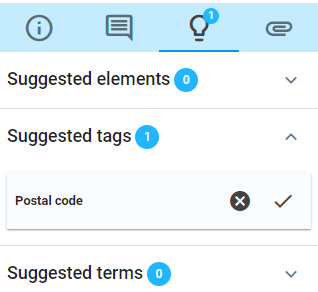 A tag has been suggested. Click on
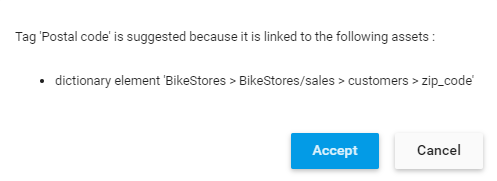 Accept it.
If you go back to the first tab in the right panel, you’ll see the tag is now assigned to the column.
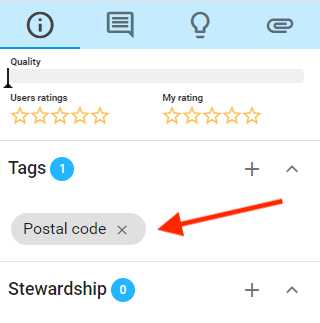
This is how the auto-tagging/suggestions works.