Get started
What you'll need
The solution is packaged in containers for x86 machine. Performance will depend on the CPU and the memory of your machine.
We recommend having at least 8gb RAM.
In order to run the solution, we will use Docker with docker compose available on https://docs.docker.com/get-docker/.
docker compose plugin is installed by default on Windows and Mac OSX. Don't forget to install it on linux!
Also, you will need git command from: https://git-scm.com/downloads
Installation
Clone the github repository with:
git clone https://github.com/yavantha/yavantha-ce
Enter in the folder yavantha-ce and start the application with:
docker compose up -d
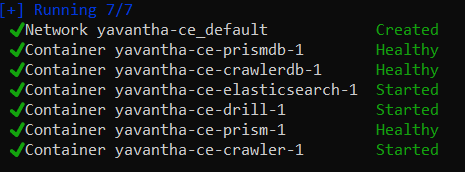
After few minutes (between 7-10 mins depending on your connection) you should see all the services running.
You can check its status in Docker Desktop > Containers
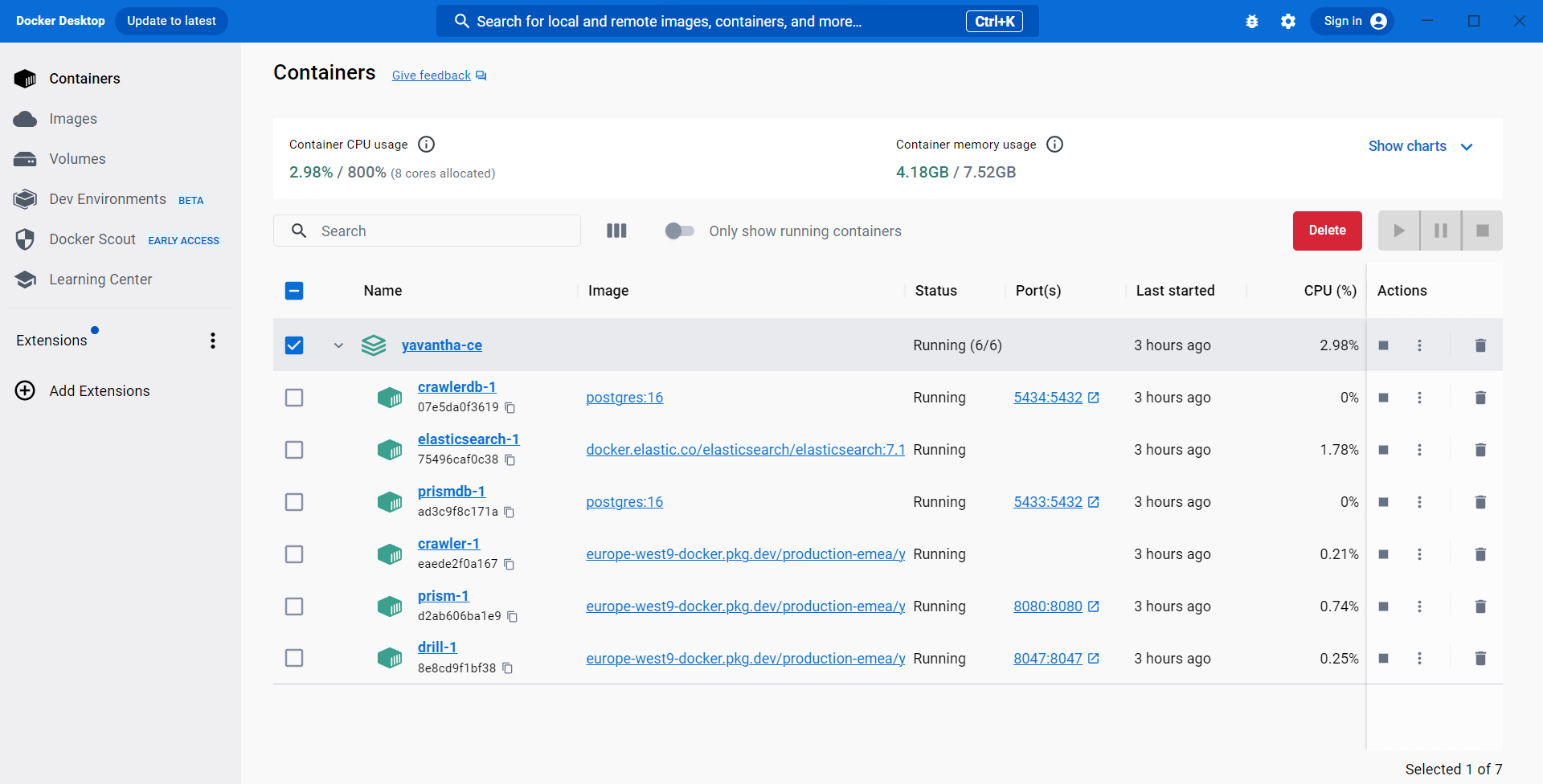
If the local port 8080 is already used by another application (Tomcat, Oracle,..), modify this port in docker-compose.yml file in prism section, replace 8080 by another port number i.e 8088 like:
    prism:
        ...
        ports:
            - "8088:8080"
If Yavantha-ce was already running,
- stop it via command :
docker compose down - restart it via command :
docker compose up -d
Connection to Yavantha-CE
Connect to your Yavantha-CE instance through a web browser (Chrome, Mozilla, Edge,..)
http://localhost:8080 or http://127.0.0.1:8080 (assuming 8080 is the local port used by the yavantha-ce-prism-1 container)
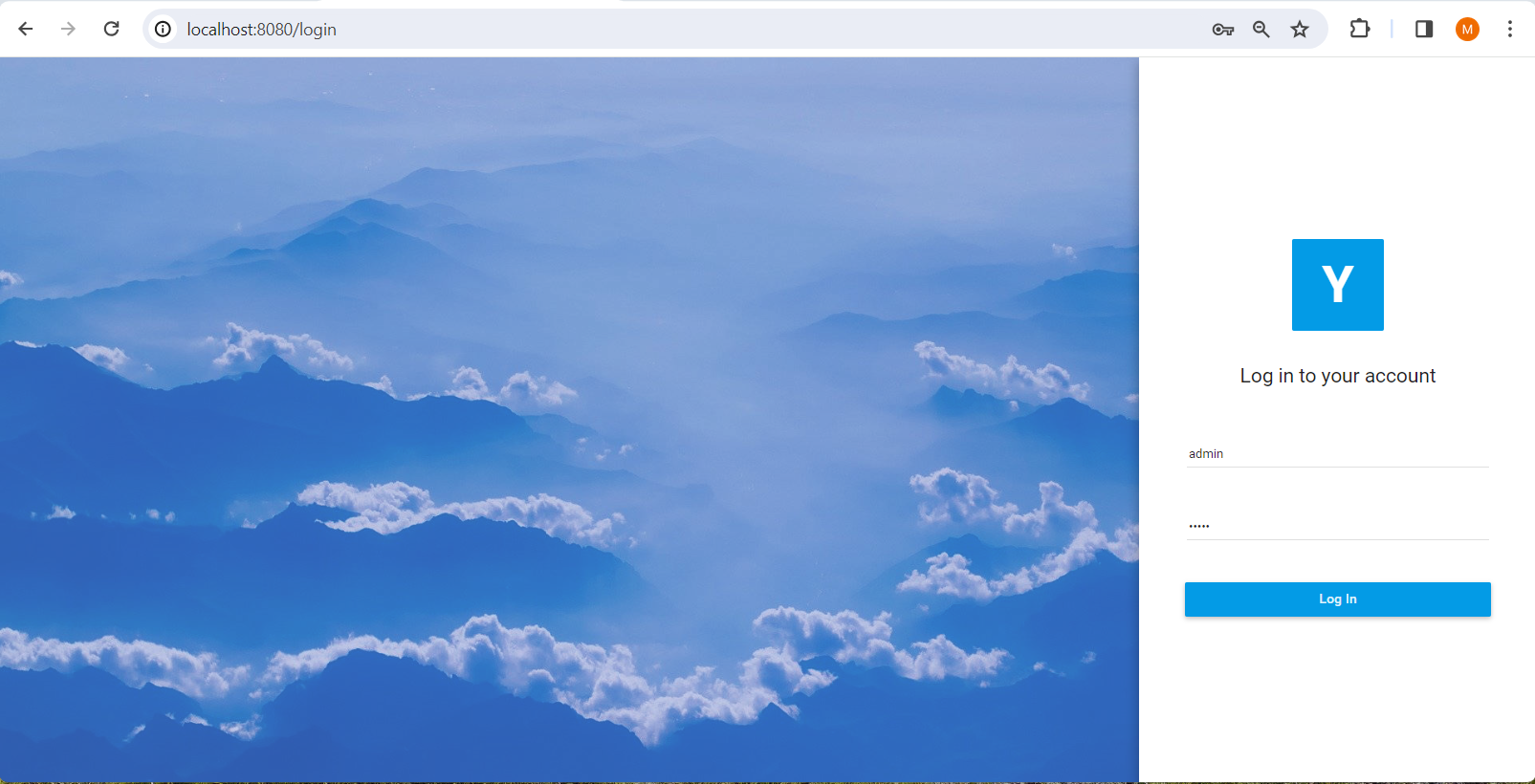
You must log as admin (only one user available in Community edition).
The initial passwd is: admin
You’ll be requested to change the password (minimal 8 characters).
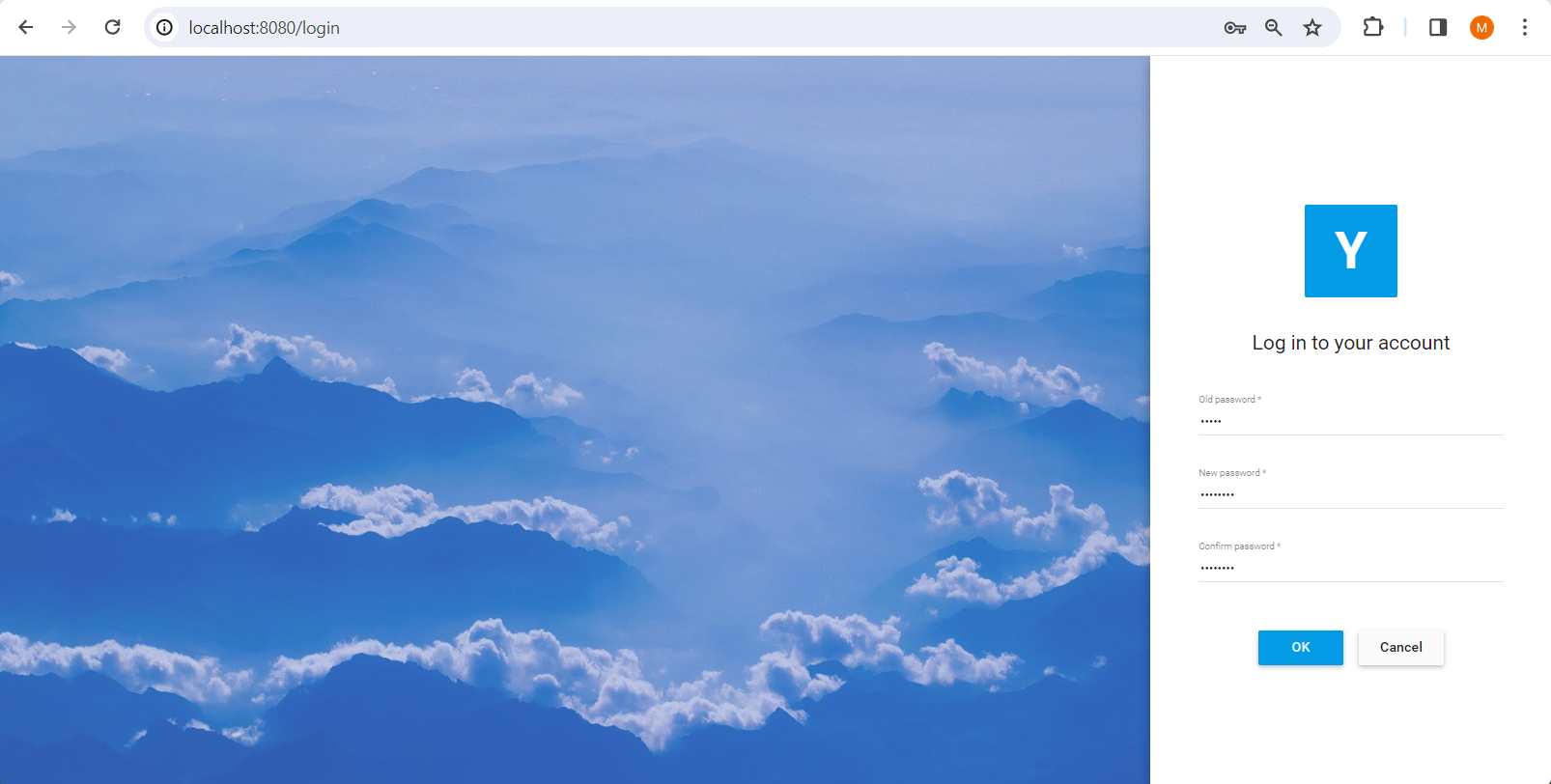
A licence is needed. Fill the form and submit it.
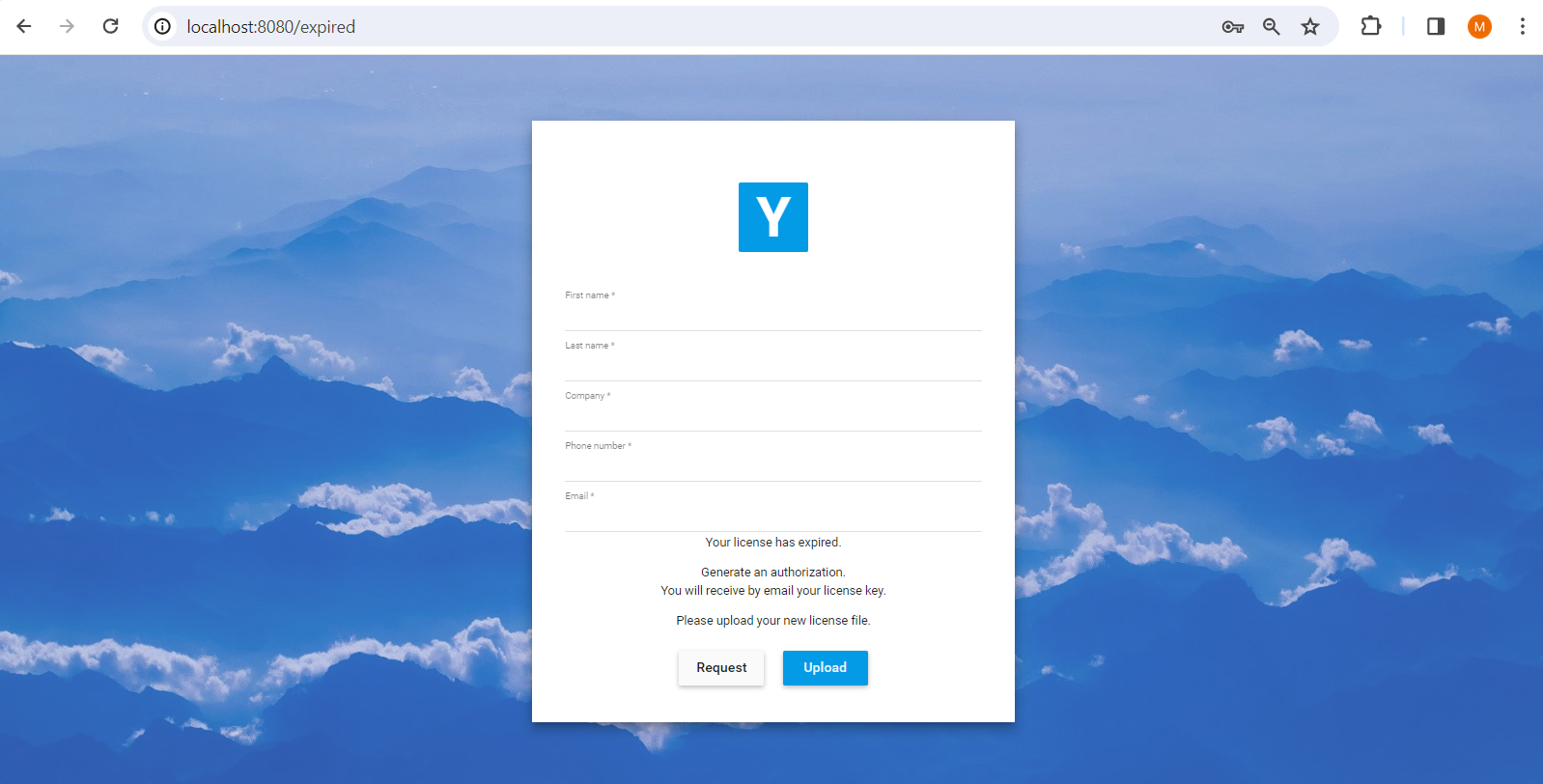
Upload the licence file you’ve received via email.
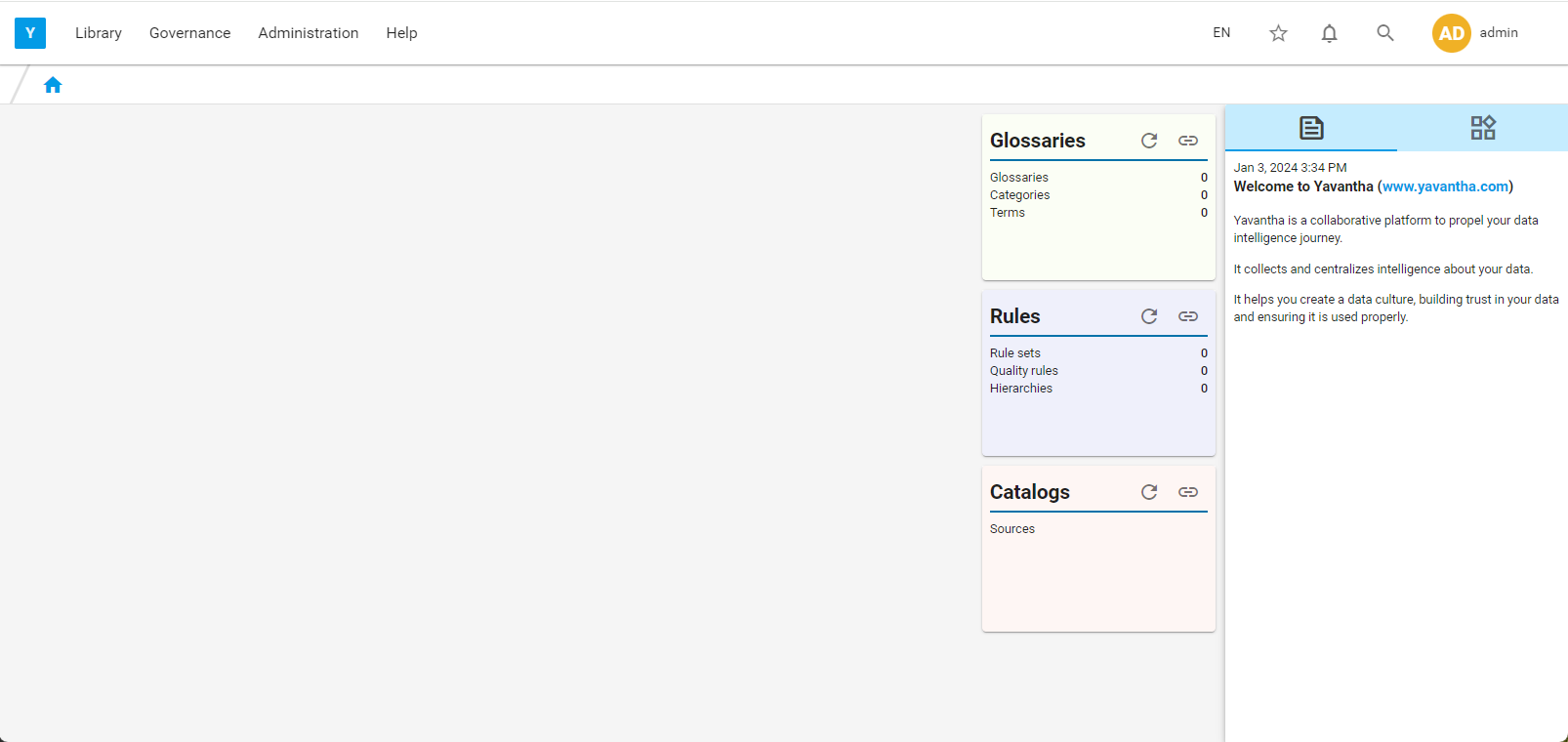
After logging out and logging in again, you will be directed to the Yavantha-CE’s home page.